

How to use your own fonts in PDF
For using your own fonts in Fluid-FPDF, you need to convert the fonts into a special format.
The FPDF-Website supports a small Converting-Tool: http://www.fpdf.org/makefont/
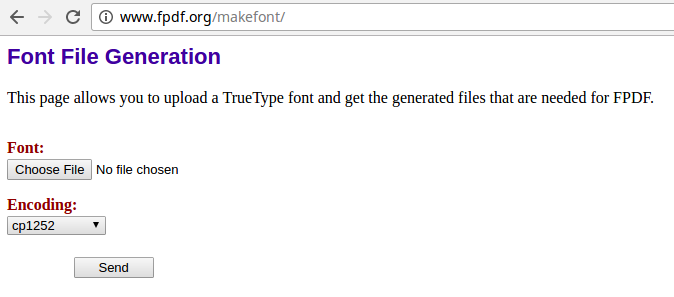
Just choose your TTF-File and select the required encoding (for example ISO-8859-15). The result are two files - one php-File and one z-File.
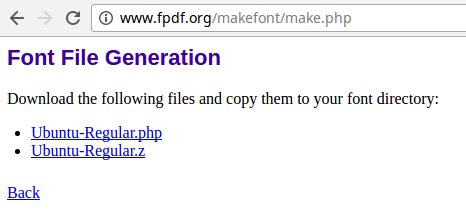
For example, you want to convert the Ubuntu-Font which is available on Google-Webfonts. You need the regular and bold font. Downloaded you receive the following files:
- Ubuntu-Regular.ttf
- Ubuntu-Bold.ttf
Once converted, you have these files:
- Ubuntu-Regular.php
- Ubuntu-Regular.z
- Ubuntu-Bold.php
- Ubuntu-Bold.z
Follow the next steps, in order to use the font:
- Upload these two files into your TYPO3-Installation
- Define the new Fontpath in fpdf:pdf
- Add fonts with the fpdf:addFont
- Set the required font
- Write your text
<fpdf:pdf fontPath="EXT:theme_bootstrap4/Resources/Private/Fonts">
    <!-- Add required Fonts -->
    <fpdf:addFont family="Ubuntu" style="N" filename="Ubuntu-Regular.php" />
    <fpdf:addFont family="Ubuntu" style="B" filename="Ubuntu-Bold.php" />
    <fpdf:addPage orientation="P" size="A4">
        <!-- Set font -->
        <fpdf:setFont family="Ubuntu" style="N" size="12" />
        <!-- Write your text -->
        <fpdf:multiCell width="100" height="5" text="Hello world" />
        <f:comment>
            // Your PDF content...
        </f:comment>
    </fpdf:addPage>
</fpdf:pdf>
Notice:
You need some support by converting your font? Get in contact with us: typo3@coding.ms